Step 1:
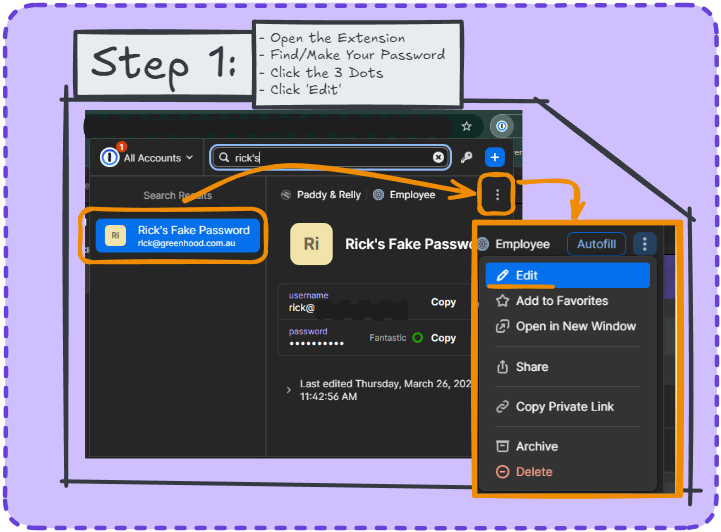
Open up your 1Password extension and find the entry you want to add the 2FA code to, or create a new one if needed. Once looking at the saved credential hit the 3 dots to the right and hit ‘Edit’ in the resulting menu.
Step 2:
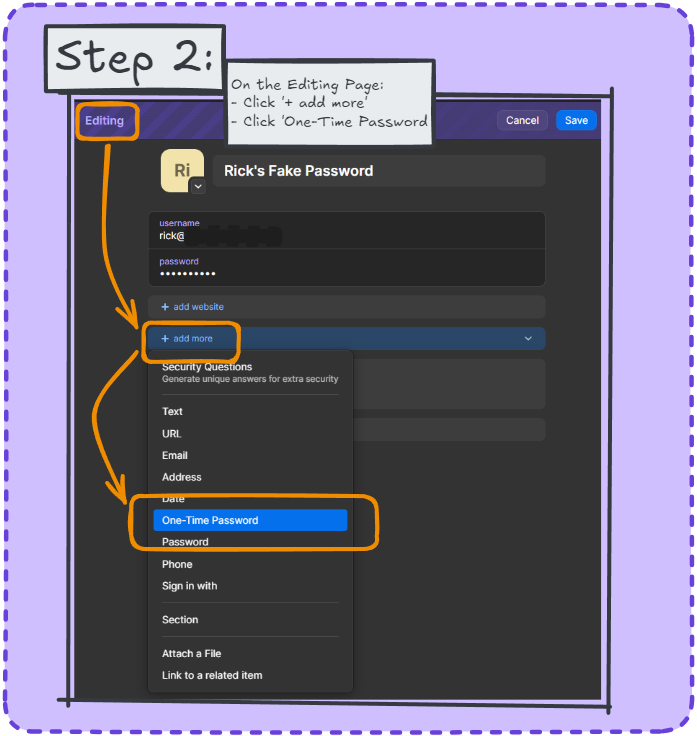
This will bring up the editing page for the credential. You’ll see a section with an option to ‘Add More’ click on that and select ‘One-Time Password’ from the resulting menu.
Step 3
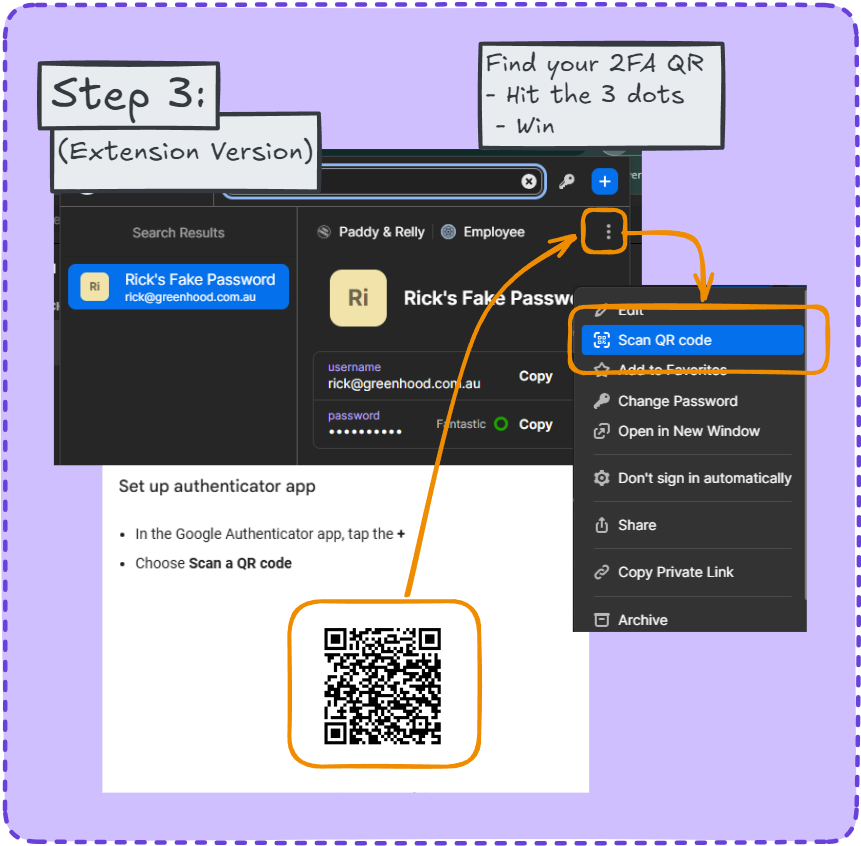
At this point you need to be looking at the setup QR code for whichever service you’re trying to configure. This step will differ based on whether you have just the 1Password extension installed or if you also have the standalone app.
For the Extension:
Once you’ve got your QR code on screen, open 1Password to the entry on which you want to set up the code. Hit them 3 dots and you’ll see ‘Scan QR Code’
Hit that and you’re done
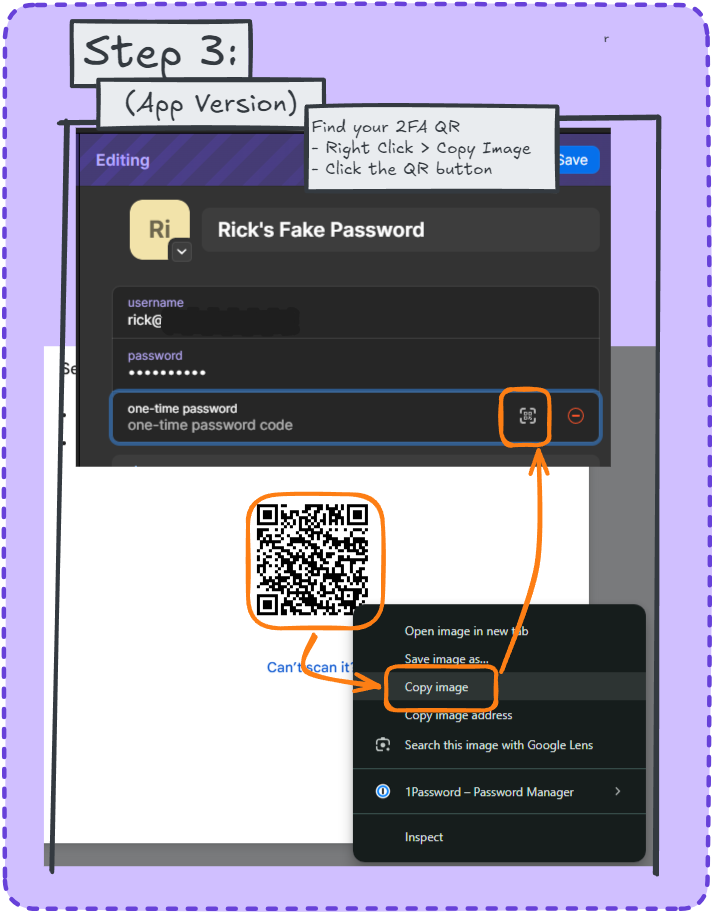
For the 1Password App:
If you have the standalone 1Password add it’s a bit simpler, simply right click the QR code and then click on the QR button that is at the far right of the ‘One-Time Password Code’ Field, the app will read the QR from your clipboard and set up the code.
Step 4:
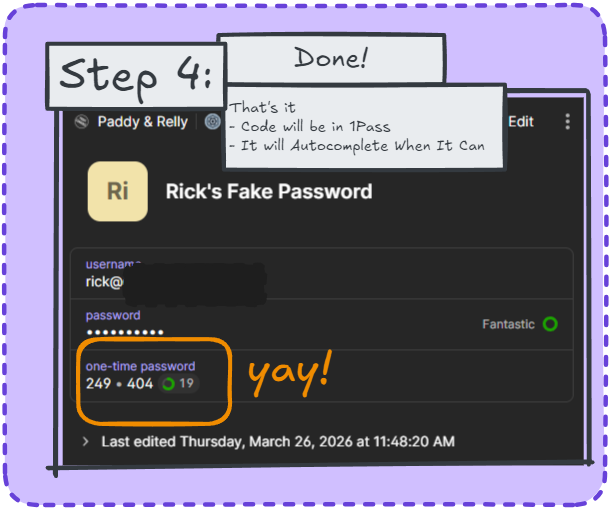
Done! The 2FA is now saved under that credential in 1Password, you’ll see it scrolling every 30 seconds. From here whenever you need the code it’ll autocomplete if it knows the website, otherwise you can just search in the extension (Control/cmd + Shift X is the shortcut btw) and hit copy to put it in the clipboard and paste it wherever you need!